Event visibility
One switch decides whether your event is offered to everybody browsing, or only to the people you let in. This page explains what Public and Private actually mean to someone trying to reach your event — which is more precise than the one-line help under the switch, and worth reading before you publish.
Who can set this
Any signed-in Backoffice account can, on a Free event exactly as on a paid one. No role, company or package feature stands between you and the choice.
Flipping the switch asks for nothing. There is no confirmation, no warning and no prompt, and nothing else about the event changes with it. In particular it does not publish the event.
What changes immediately is the form in front of you — the step sidebar echoes the new state as you move the switch. What gets saved is not. Your choice is written to the event when you finish this step with Continue, which is the same action that creates a new event or saves a draft back. Move the switch and then leave the step without continuing, and the stored visibility stays exactly as it was.
Where it is
In Basics, the wizard's first step, inside the Audience fit card — below Location and Interests. As with the rest of that step, the card is collapsed until you pick a package. How to reach the wizard at all is covered in New event: four creation steps.
The switch itself
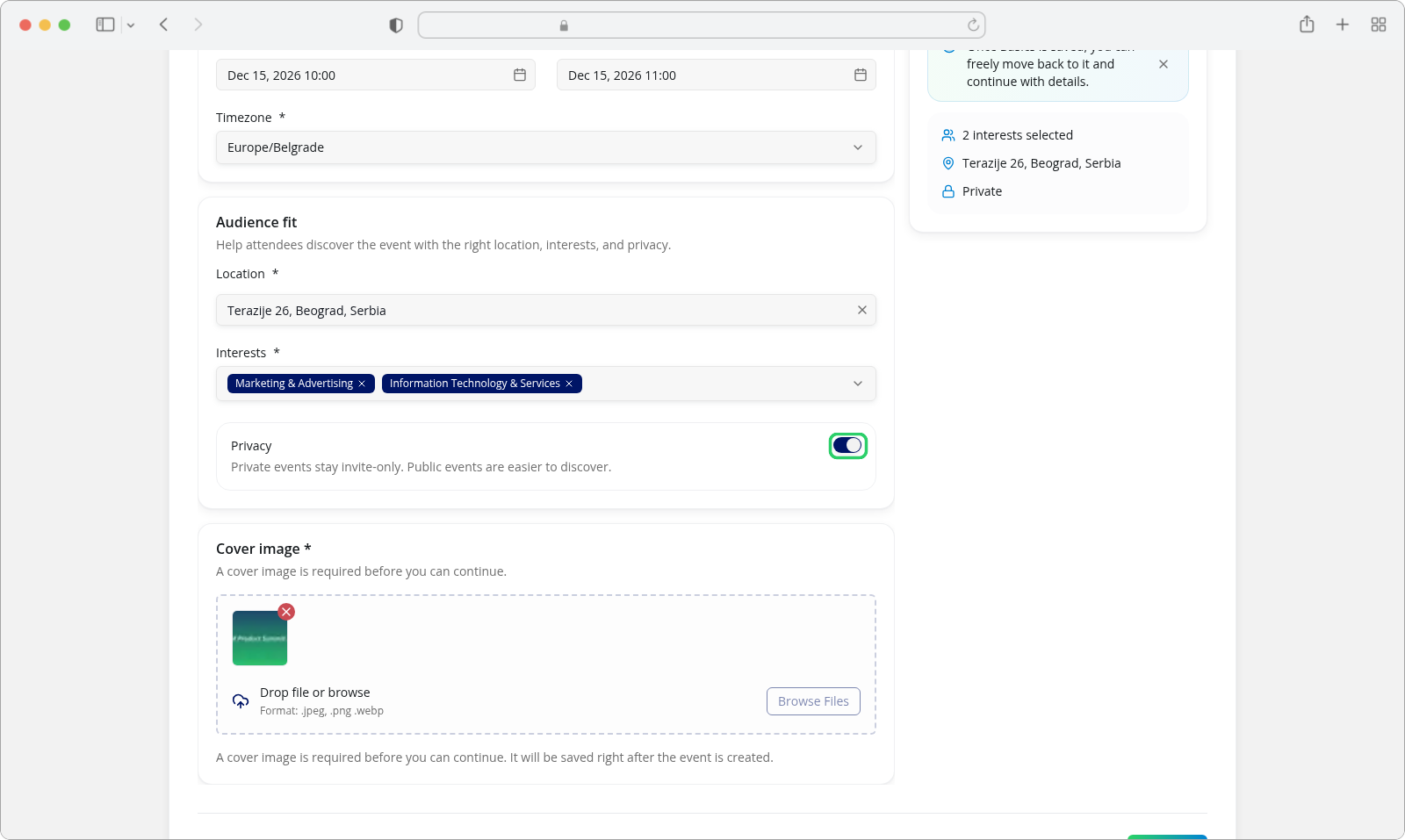
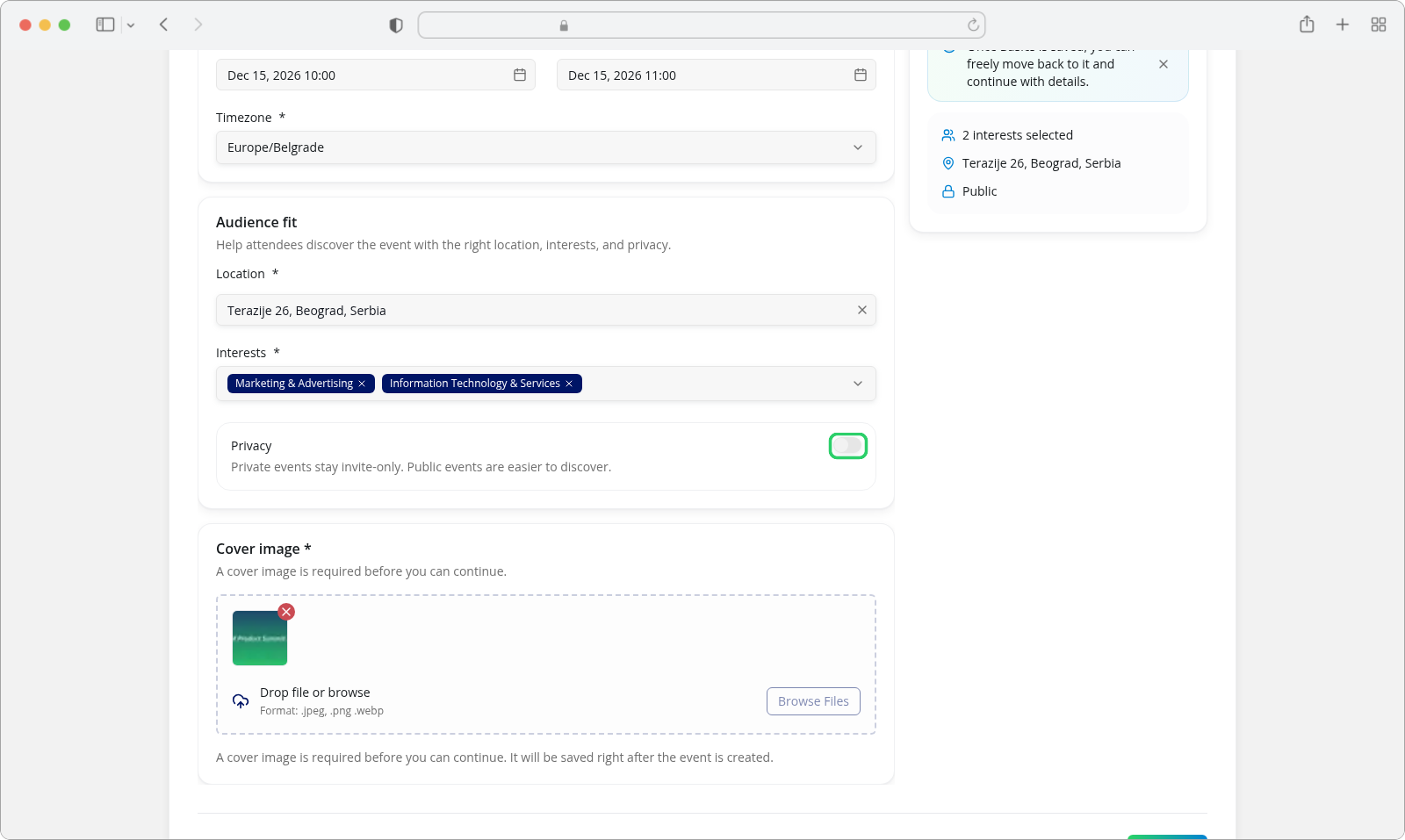
Privacy is a single on/off switch, not a list you pick an option from. Off means the event is public; on means it is private. Its help line reads Private events stay invite-only. Public events are easier to discover.
While you move it, the step sidebar on the right echoes the state you just chose: a padlock, and the word Public or Private. A newly opened wizard always starts with the switch off, so your event begins public unless you change it here.
What each state actually means
The help line is a fair summary and a loose rule. What decides access is two things together — this switch, and whether the event has been published.
Public
A public event can be opened by anyone, signed in or not, once it is published. Until then it behaves like any other unfinished event: the people who run it can see it, and nobody else. Publication is a separate action, covered in Draft, review and publication.
Private
In the places events are listed and discovered, a private event stays closed to an anonymous visitor however long ago it was published. That part matches invite-only. What the help line leaves out is who a signed-in person has to be before a private event appears for them:
- You, if you created the event — in any state, published or not.
- A moderator of the event.
- A manager of the organizing company — someone whose role in that company is Admin or Moderator.
- A member of the event team, or the holder of its access code — but only once the event is published.
Any other signed-in person does not see it in those listings, including one who was invited but never added to the team or given the access code. Being signed in to RU4M is not on its own enough to have a private event show up for you.
This is about being found, not about who holds the link
The rule above governs what a visitor is shown while browsing. It does not seal the event's own page: anyone who already has a private or an unpublished event's link — its ID or its slug — can open that page directly, without signing in and whatever its visibility. The same is true of a draft.
So Private is a way of keeping an event out of the lists, not a promise that its contents are confidential. Share a private or draft link only with the people you intend it for, and do not put anything in one you would not want a link-holder to read.
Where you will see it afterwards
Every event card carries a badge — Public or Private — and the events list can be filtered to All, Public or Private. In Serbian those are not the same words in both places: the card badge reads Javno / Privatno, while the filter reads Svi / Javni / Privatni and the switch itself is labelled Privatnost. Both wordings mean the same two states.
These are places where visibility is shown and filtered by. Neither changes it.
Changing it after the event exists
The switch here is not the only way to change visibility, and you do not have to decide here. Visibility can be changed at any time on the event's own edit screen, among its basic details, where the same choice is offered as Public or Private rather than as a switch.
Nothing about that change depends on the event being a draft, and saving it leaves the publication state exactly as it was — making a private event public does not publish it. See Edit event content.
If something goes wrong
| What you see | What it means | What to do |
|---|---|---|
| Your event is public, but nobody outside finds it | It has not been published yet. Public visibility opens the page only once the event is published. | Publish it — Draft, review and publication. |
| Someone signed in does not see a private event in the lists | Expected. It shows for its creator, its moderators, the organizing company's managers, and — once published — its team members and access-code holders. | Add them to the event team or issue them an access code, and make sure the event is published. They can also open the event's page directly if you send them the link. |
| An invited guest says the event does not show up for them | An invitation on its own does not add them to the team or give them an access code. | Add them to the team or issue an access code — see Invitations and promotion. |
| You moved the Privacy switch but left the step without pressing Continue | The switch only changes the form until the step is submitted. | Return to Basics, set the switch again, and press Continue to save it. |
| You want to change it after the event exists | This switch is not the only control. | Use the event's edit screen — Edit event content. |
| The Serbian wording does not match what you see | The card badge and the list filter use different word endings for the same two states. | Both are correct: Javno / Privatno on the card, Javni / Privatni in the filter and the wizard. |
Related tasks
- New event: four creation steps — the wizard this switch belongs to
- Draft, review and publication — publication, the other half of who can see an event
- Edit event content — changing visibility once the event exists
- Invitations and promotion — how people reach a private event
- Dates, timezone and location — the other required fields in the same step