Connecting a company to an event
Company in the event's Organizer step links one of your companies to that event. Pick it and the organizer's name, description and image are filled in from the company, so the public event page stops carrying a hand-typed organizer and starts showing the company you actually manage.
Only companies you own or moderate are offered. If the company you want is missing, create it first or create it inline from the same field.
Available to event organizers and company admins.
Any account that can edit the event sees the Organizer tab, and any company where you are an Admin or a Moderator can be selected. A company where you are only a Member is not offered, and neither is a company somebody else created — not on any package.
Where it is in the app
The field sits in the event editor, on the Organizer tab:
- Open your event from All Events at
/en/dashboard/eventsand click its name. - On the event page choose Edit.
- Keep Advanced selected in the Quick edit / Advanced switch, then open the Organizer tab.
Organizer is one of two tabs in Advanced mode; the other is Core details. If you are in Quick edit mode the tab is not there — switch to Advanced first. While the tab has nothing saved for this session, its header reads Not saved yet; once you change something it reads Unsaved changes.
Steps
1. Open the Company field
Click the Company field, labelled with a small More information button. It opens a search box that reads Type company name... and lists the companies you manage as you type. Ten match at a time.
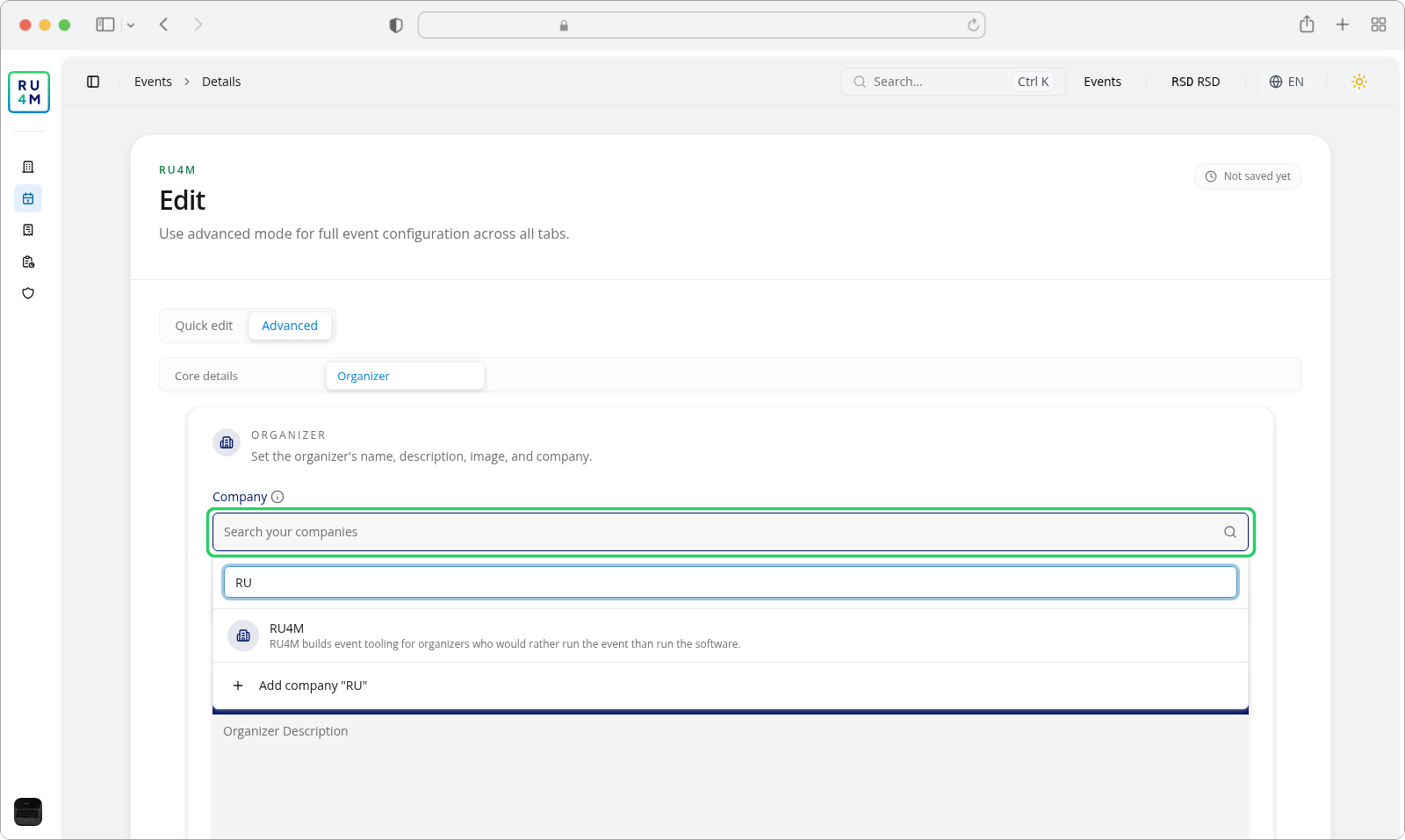
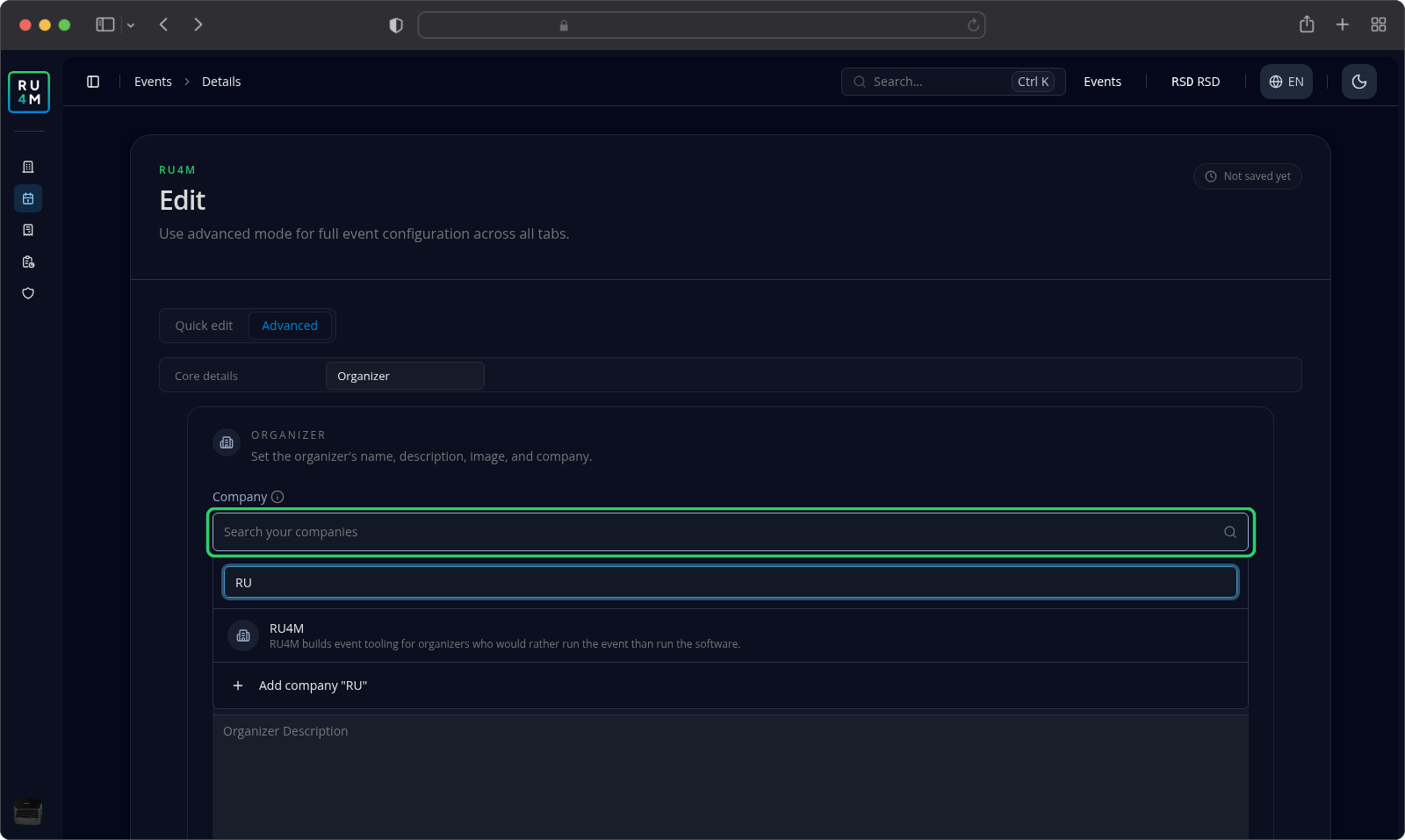
Typing two characters is the point where the field starts offering a new company: Add company "RU" appears under the results and opens the Add company dialog with that name filled in. The company it creates is selected and prefilled for you, so you never leave the event. See Create company for what the dialog asks for.
Before you have typed anything, the list explains itself instead of showing results: You do not have any managed companies yet. Type a name to add one. After you have typed and nothing matched, it reads No managed companies found.
2. Pick the company
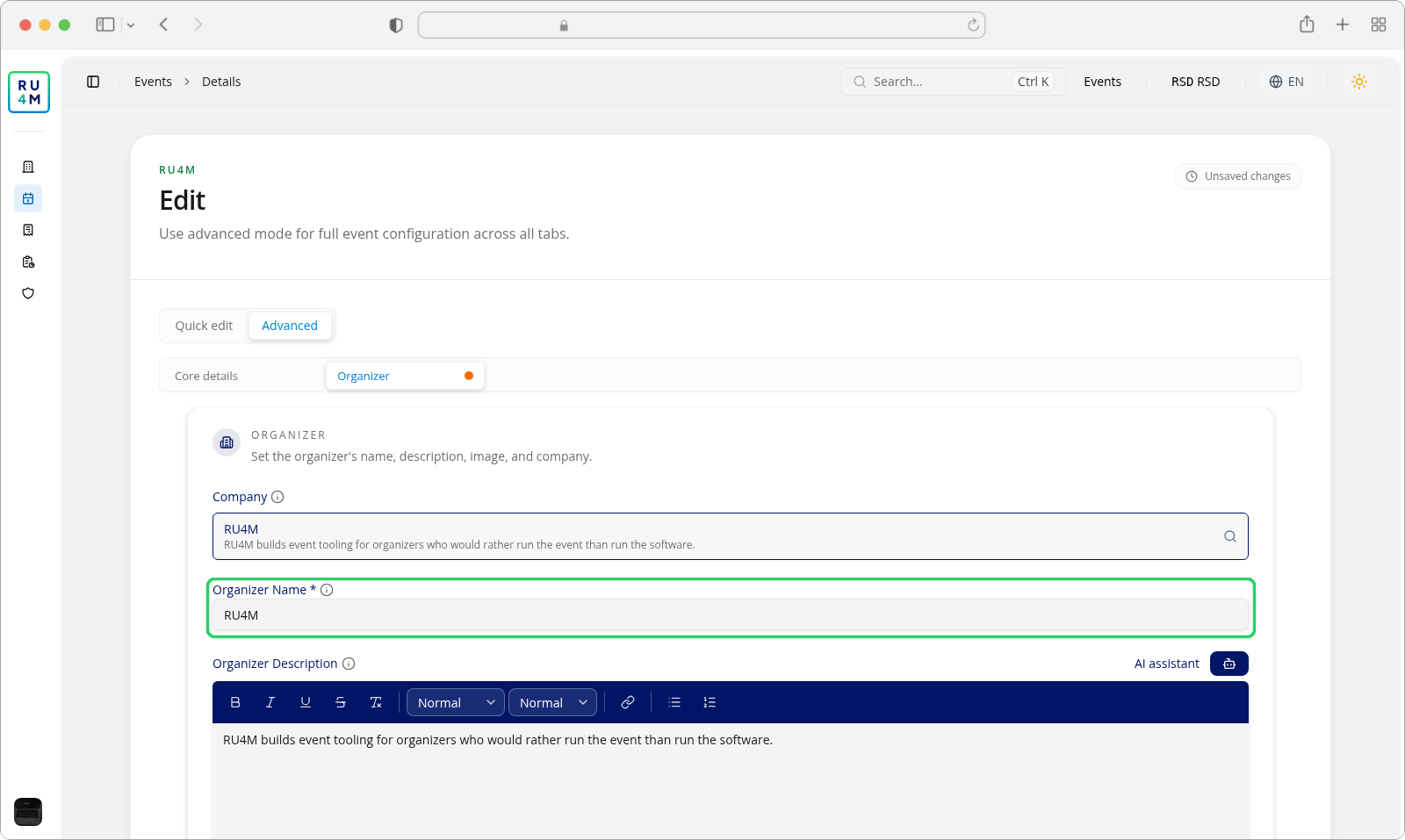
Click the company in the list. The field shows the company's name with its description underneath, or No company description yet. when it has none.
3. Check what the company filled in
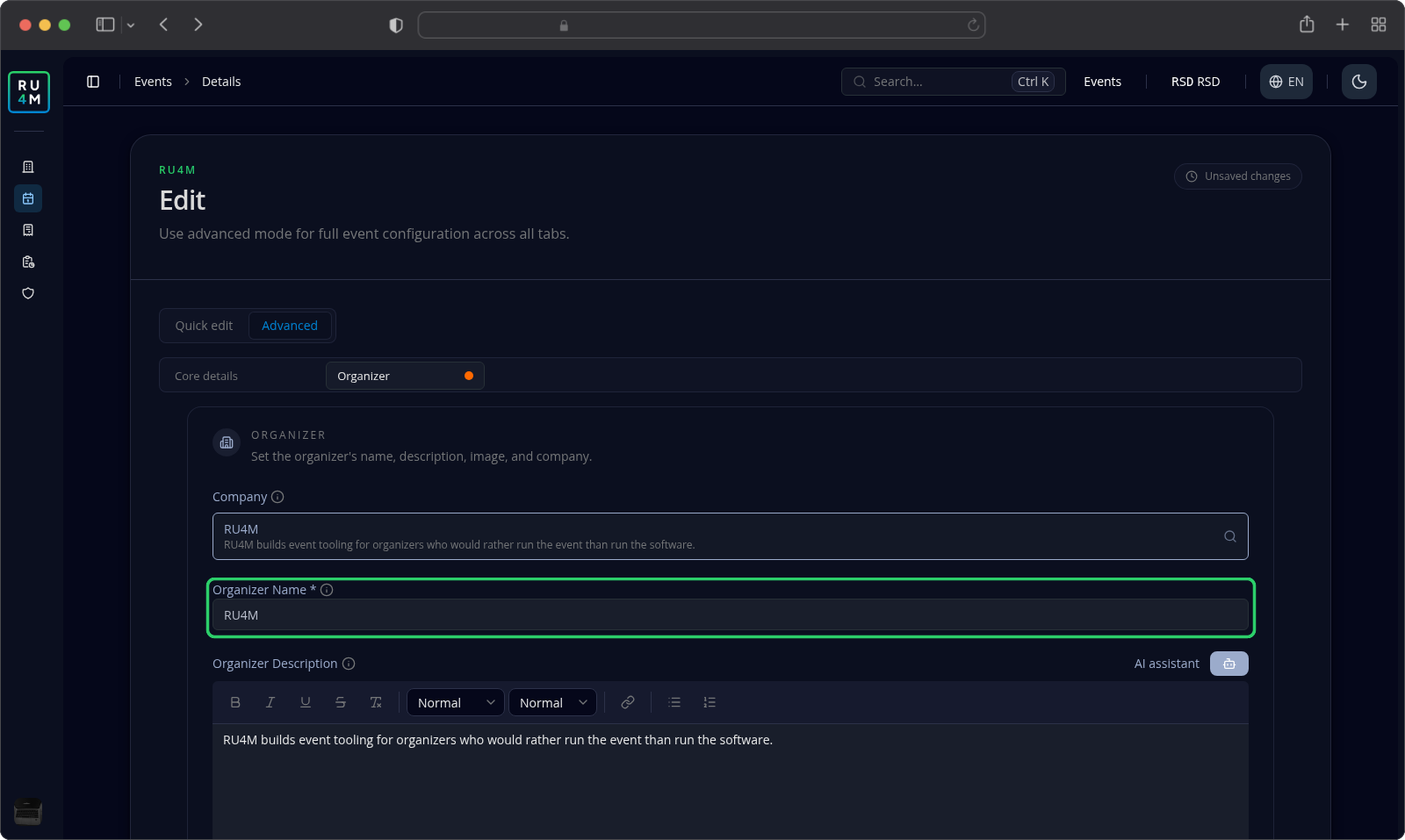
Selecting a company writes four things into the tab: the company itself, and the Organizer Name, Organizer Description and Organizer Image fields. Anything you had typed there before is overwritten — the company is the source now.
Three consequences worth knowing:
- The copy is a snapshot, not a link. Edit the company later and the event keeps the name and description it was saved with. Change them here if the event should say something else.
- Only three fields travel. The company's website, phone and address are not copied to the event. They stay on the company, where Editing company details keeps them.
- The link also hands out editing rights. Once the company is saved as the event's organizer, every Admin and Moderator of that company can edit the event — not only you, and without sitting on its team. A company Member gains nothing on it. See Company member roles and permissions.
Company itself is optional on this tab — an event can be organized by a person with no company behind it. Organizer Name is the field marked required, and it must stay filled in.
4. Save
Press Save. The header drops the Unsaved changes badge once the tab is stored, and the event page now shows the company as its organizer. Press Back to leave without saving.
If something goes wrong
| What you see | What it means | What to do |
|---|---|---|
| No managed companies found. | No company you own or moderate matches what you typed. | Clear the search and check the spelling, or press Add company to create the one you wanted. |
| Your company is not in the list at all | You are a plain Member of it, or not a member. Only Admin and Moderator see it. | Ask an Admin of that company to raise your role, or create your own copy with Add company. |
| No company description yet. | The company has no description filled in. | Add one on the company's page — see Editing company details. It will not reach this event on its own. |
| The event shows the old organizer after you saved | The event keeps the organizer fields as they were when you last saved, and this tab is only sent again when you change something in it. Reopening it and pressing Save unchanged writes nothing. | Change something first: open the Company field and pick the company again to copy its current values over, or type the new name, description and image yourself, then press Save. |
| Failed create company. after Add company | The company was not created, and none was selected. | The dialog stays open with your values — fix the highlighted field and press Create again. |
| The Organizer tab is missing | You are in Quick edit mode. | Switch to Advanced at the top of the event page. |
A second, different link: a sponsor's company
A sponsor entry can be linked to a company too, and the two links behave differently. On the event's Sponsors tab, Link to existing company searches every company on the platform, not only yours, and reuses its logo, website and address on the sponsor card — kept in step with the company afterwards.
Choosing that link for a sponsor you do not manage is fine. Choosing the Organizer link for a company you do not manage is not offered at all. See Edit event content for the rest of the Sponsors tab.