Draft, review and publication
The Review step is where an event stops being a work-in-progress and becomes something people can attend. This page explains the pre-publish checklist you see there, what actually stands between you and the Publish event button, what Finish later does, and how publishing works from the event page and the events list afterwards.
The short version: the checklist is advice, not a gate. Four things are the gate — a short summary, a full description, an organizer and a cover image — and the button stays disabled until all four are there. There is no approval step, no reviewer and no queue: the person who creates the event publishes it.
Who can publish
Any signed-in Backoffice account that can edit the event can publish it. There is no role to obtain, no company membership to add and no platform administrator in the way. A Free event and a paid one follow the same rule, and the difference between them is only what has to happen to the payment first.
What the Review step shows
Two cards sit side by side under the step heading. The left one is a summary of the event as it stands — title, short summary, date and time, timezone, location, speaker and session counts, and the organizer. The right one is the Pre-publish checklist.
The checklist carries its own instruction, and it is worth reading literally: Nothing here blocks publishing, but complete events perform better. For Basics completed and At least one session that is exactly true — neither is part of the gate. The other four items are the gate itself, so leaving one of those unchecked is what disables the button.
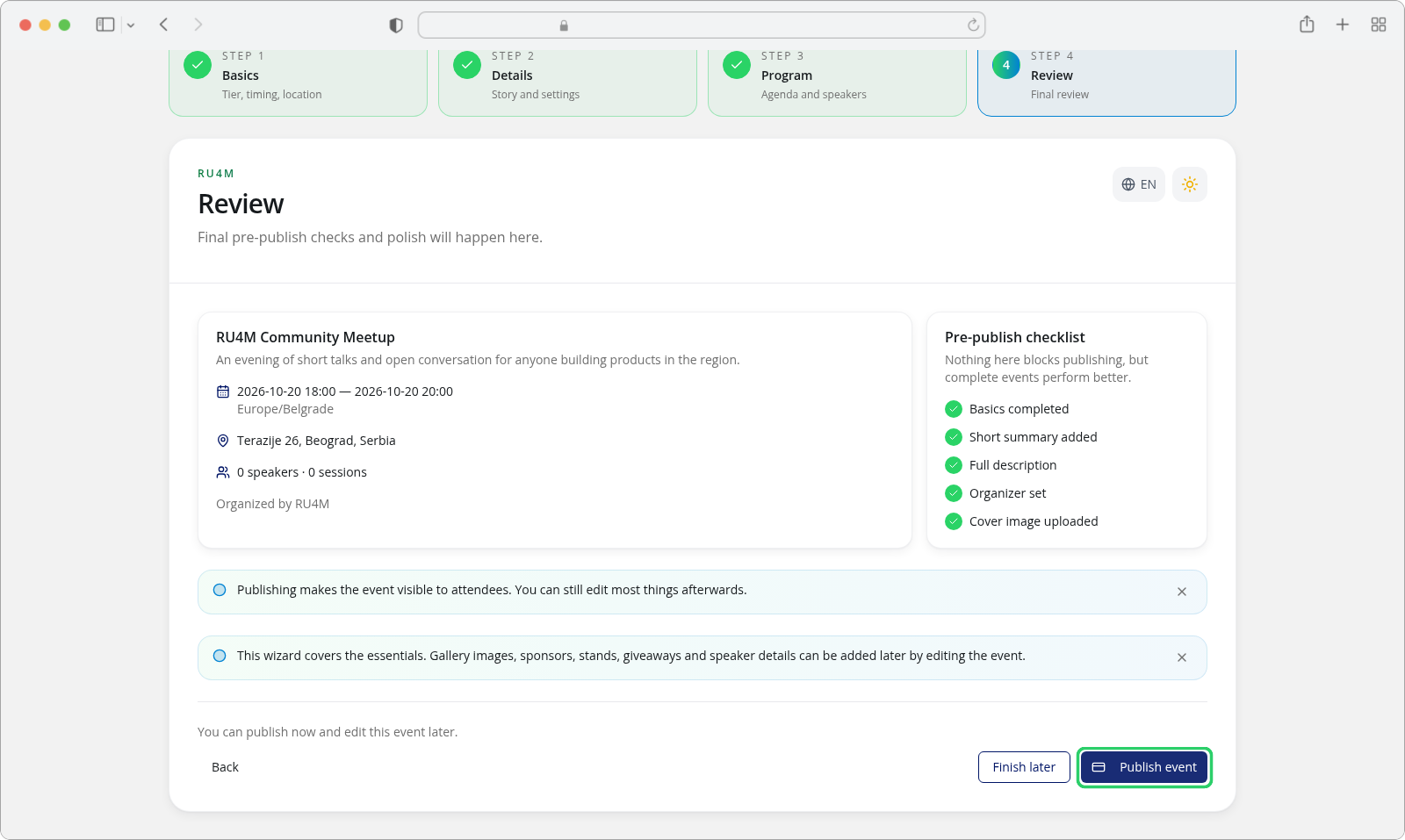
The items are:
| Item | Meaning |
|---|---|
| Basics completed | The event has a title. |
| Short summary added | The one- or two-sentence summary is filled in. |
| Full description | The longer story for the event page is filled in. |
| Organizer set | An organizing company and an organizer name are chosen. |
| Cover image uploaded | The event has a cover picture. |
| At least one session | The event has at least one session. This line appears only on packages that include an agenda, and it is the one item most events legitimately leave unchecked. |
An unchecked item is drawn in grey and a checked one in green.
What actually blocks publishing
Four things must be in place before the event can be published, and they are the same four the checklist is built around: a short summary, a full description, an organizer and a cover image. The button is greyed out until all four are there, and a message above the footer names what is missing:
Add a summary, full description, organizer, and cover image before publishing.
The four are collected earlier in the wizard, so on an event you created yourself they are normally already in place: the cover image is required in Basics before the event is even created, and the summary, the full description and the organizer are all required in Details.
You still meet the message on a draft that is missing one of them. The event below is missing exactly one — its Organizer set line is grey while the other four essentials are ticked, and that unchecked line is what disabled the button.
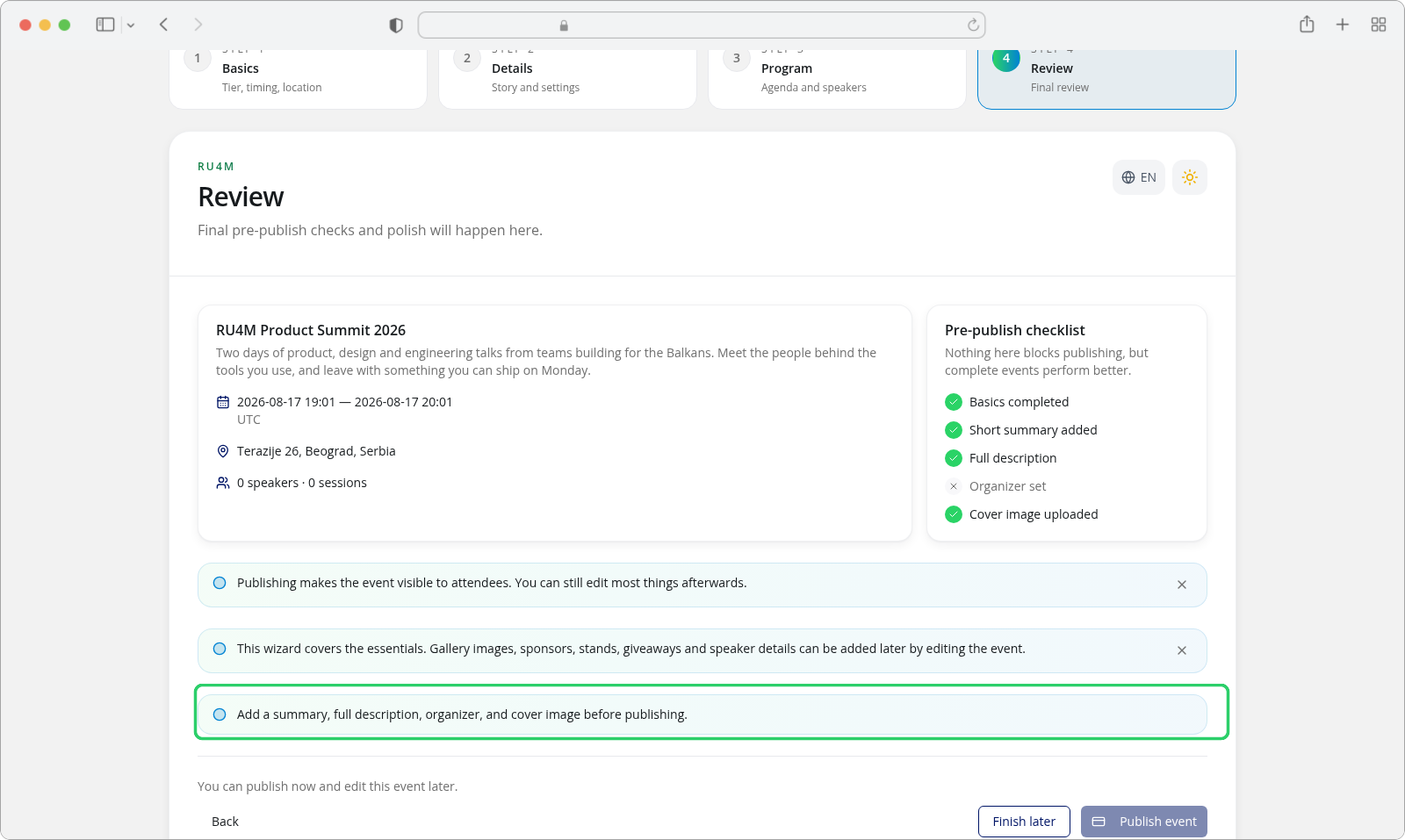
Opening Review for an event like this sends you to Details first, because that is the step that collects what is missing. The four step tiles across the top stay clickable, though, so Review is one click away and shows the message exactly as it does above.
The buttons at the bottom
The step footer carries Back, Finish later and one more button whose label depends on the event's package:
| Situation | The button reads |
|---|---|
| A Free event, or a paid event whose payment is settled | Publish event |
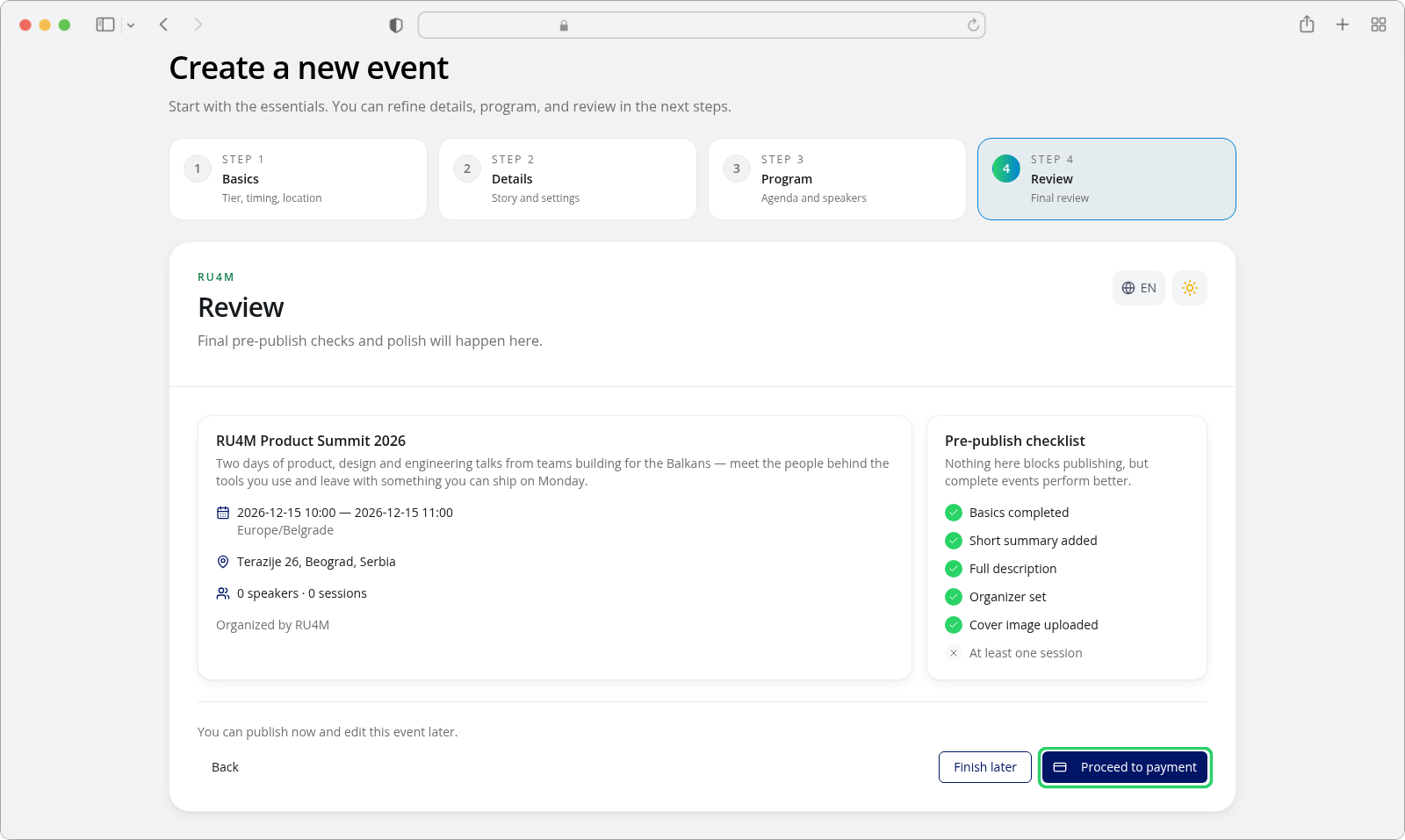
| A paid package whose payment has not been settled yet | Proceed to payment |
The Serbian labels are Objavi događaj and Nastavi na plaćanje. Once the event is published, this third button is gone — a published event has nothing left to publish from this step.
Finish later (Završi kasnije) leaves the event exactly as it is: a draft, with nothing published and nothing lost. The event stays in your list, and you can come back to it through the wizard or through the event's own page.
Publishing from the Review step
Press Publish event and the event is published. A toast reading Event published! (Događaj je objavljen!) confirms it, and you are taken to the event's own page, where the status now reads PUBLISHED.
Publishing does not lock the event. The wizard says Publishing makes the event visible to attendees. You can still edit most things afterwards, and that is accurate — you can keep editing the event, and most of what you change afterwards still shows on the public page.
Publishing from the event page and the list
You do not have to publish from the wizard. The same action exists in two other places, under a slightly different label:
- The event's own page carries a status badge — DRAFT while the event is not live — and a Publish action next to it.
- The events list (All Events) has a per-row menu, opened with the ⋮ button at the end of the row. It holds Publish while the event is a draft and Unpublish once it is published.
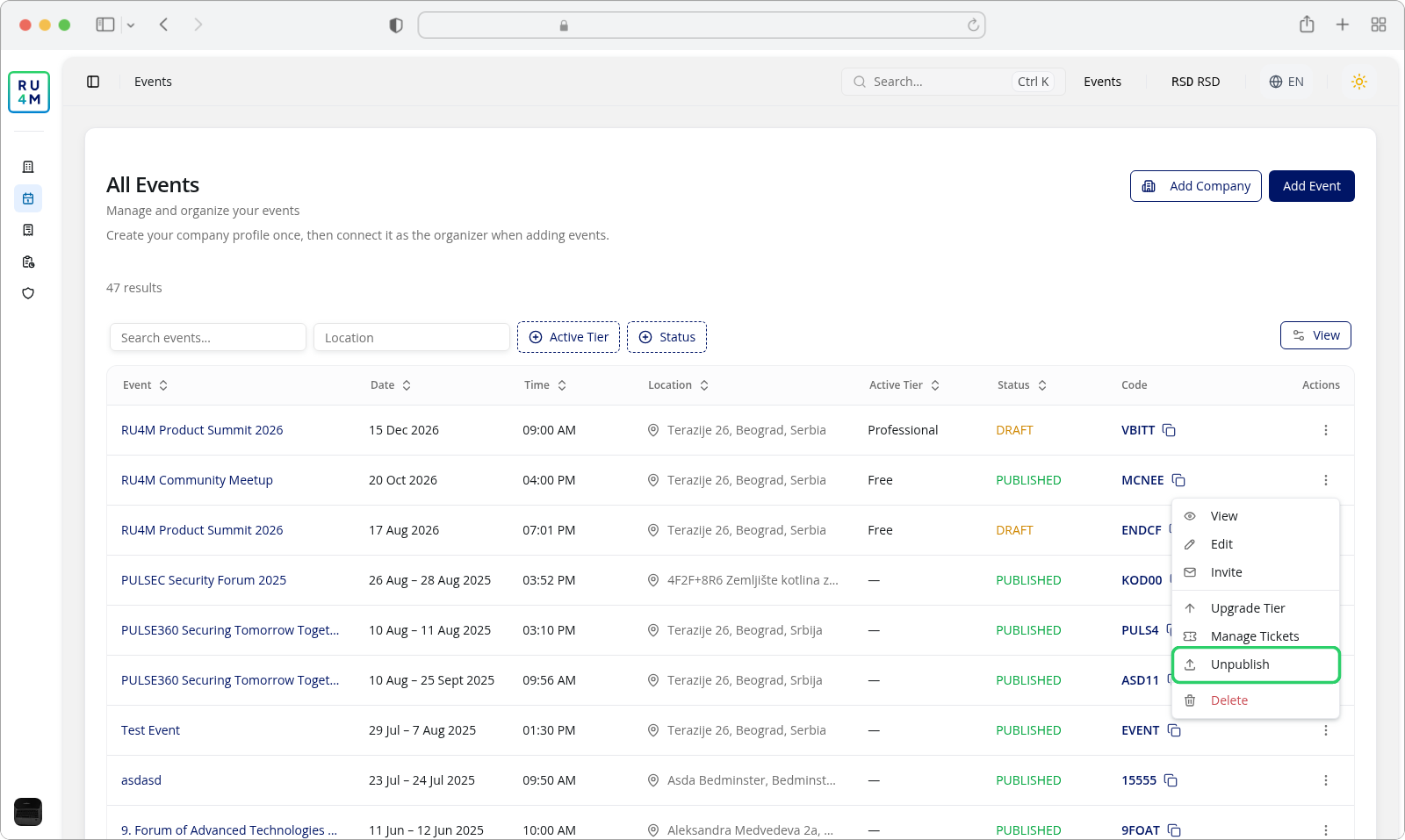
Two naming details are worth knowing, because the same action is worded differently in the two places:
| Where | Publish | Proceed to payment |
|---|---|---|
| The wizard's Review step | Publish event / Objavi događaj | Proceed to payment / Nastavi na plaćanje |
| The event page and the events list | Publish / Objavi | Proceed to Payment / Nastavi na plaćanje |
Publishing from the list gives the toast Event published successfully (Događaj je uspešno objavljen); publishing from the wizard gives Event published!. Both mean the same thing.
Paid packages
A paid package cannot be published until its payment is settled — that is the one thing the package adds to the rule. The button says Proceed to payment instead of Publish event and takes you into the payment flow. Paying does not publish the event by itself: a settled payment moves the event to PAYMENT COMPLETED, and only then does the button read Publish event. Close the payment dialog, return to this step and press Publish event as a second, separate action. The procedure itself belongs to Packages and tickets, not to this page.
Unpublishing
Unpublish (Ukloni objavljivanje) appears in the row menu of a published event and returns it to a draft, with the toast Event unpublished successfully. The wizard's Review step does not offer it, and neither does the event page.
Be aware of one thing about it: the Backoffice only serves this action outside the live platform. On production it answers This action not possible., so the menu item can be there and still refuse. If you need a published event to become a draft again, change its state from the Backoffice support rather than relying on this button.
Events that have already ended
An event whose end date has passed cannot be published from the events list — the Publish entry is disabled and explains why: Cannot publish or proceed to payment past events. The wizard's Review step does not apply that rule, so an event you are still working on can be published from there even after its end date.
Drafts, and who can see one
Every new event is created as a draft. There is no intermediate state you will meet: the status values that exist are DRAFT, PUBLISHED and PAYMENT COMPLETED (a paid event whose payment is settled but which has not been published yet). The list shows a free-tier event in the last of those states as DRAFT.
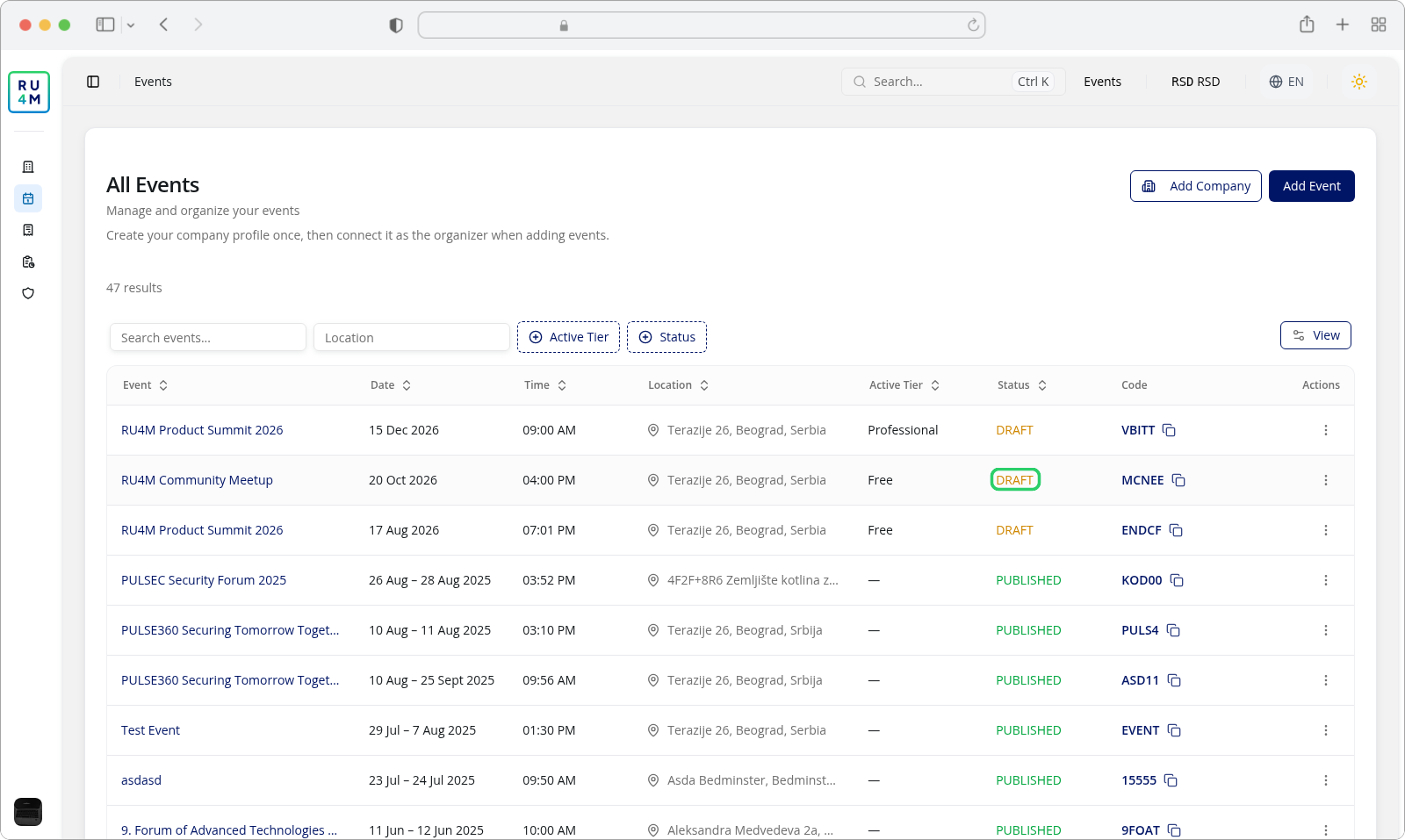
A draft is invisible in the listings to people outside your team. Specifically:
- You, its creator, always see it.
- Its moderators always see it.
- Managers of the organizing company always see it.
- Everybody else — including signed-in users and people holding an invitation or an access code — sees nothing until the event is published.
As with a private event, that is a rule about being found, not about who holds the link: anyone who already has a draft's address can open the draft's page directly, without signing in. Treat a draft link as unfinished business, not as a secret.
Nothing is reviewed and nothing is rejected. Publishing is not submitted to anybody: there is no approval queue, no administrator who signs off, and no state in which a published event can be sent back. Once you press the button, it is published.
If something goes wrong
| What you see | What it means | What to do |
|---|---|---|
| Publish event is greyed out and the message Add a summary, full description, organizer, and cover image before publishing appears | One of the four essentials is missing. | Fill in the named field, then publish again. |
| The button says Proceed to payment instead of Publish event | The event is on a paid package and its payment is not settled. | Complete the payment — see Packages and tickets. |
| Publish event is not there any more, and the event's page says Event is already published | The event is already published, so this step has nothing left to publish. | Edit the event from its own page or from the events list. |
| Event published successfully but nobody can find the event | The event is published, but it is Private, so it stays out of the listings. | Send people the event's link, or make it Public — see Event visibility. |
| You are sent back to the Details step instead of Review | The event is missing a summary, an organizer or a cover image, so the wizard opens on the step that collects them. | Fill the field the step names, then press Continue to reach Review. |
| Publish in the list is disabled | The event has already ended. | Publish it from the wizard's Review step, or leave it a draft. |
| This action not possible. after choosing Unpublish | Unpublishing is not served on the live platform. | Ask support to move the event back to a draft. |
| The status column shows PAYMENT COMPLETED | A paid event whose payment is settled but which has not been published. | Publish it — the button reads Publish. |
| Your Serbian labels do not match the English page | The wizard and the list word the publish action differently, and only the capitalisation of Proceed to payment differs. | Both are correct: Objavi događaj in the wizard, Objavi in the list. |
Related tasks
- New event: the four creation steps — the wizard this step belongs to
- Event visibility — whether people outside can find the event once it is published
- Dates, timezone and location — the scheduling fields on Basics
- Packages and tickets — what each package includes, and paying for one
- Edit event content — everything the wizard does not ask for
- The public event page and sharing — what an attendee sees once the event is published