Dates, timezone and location
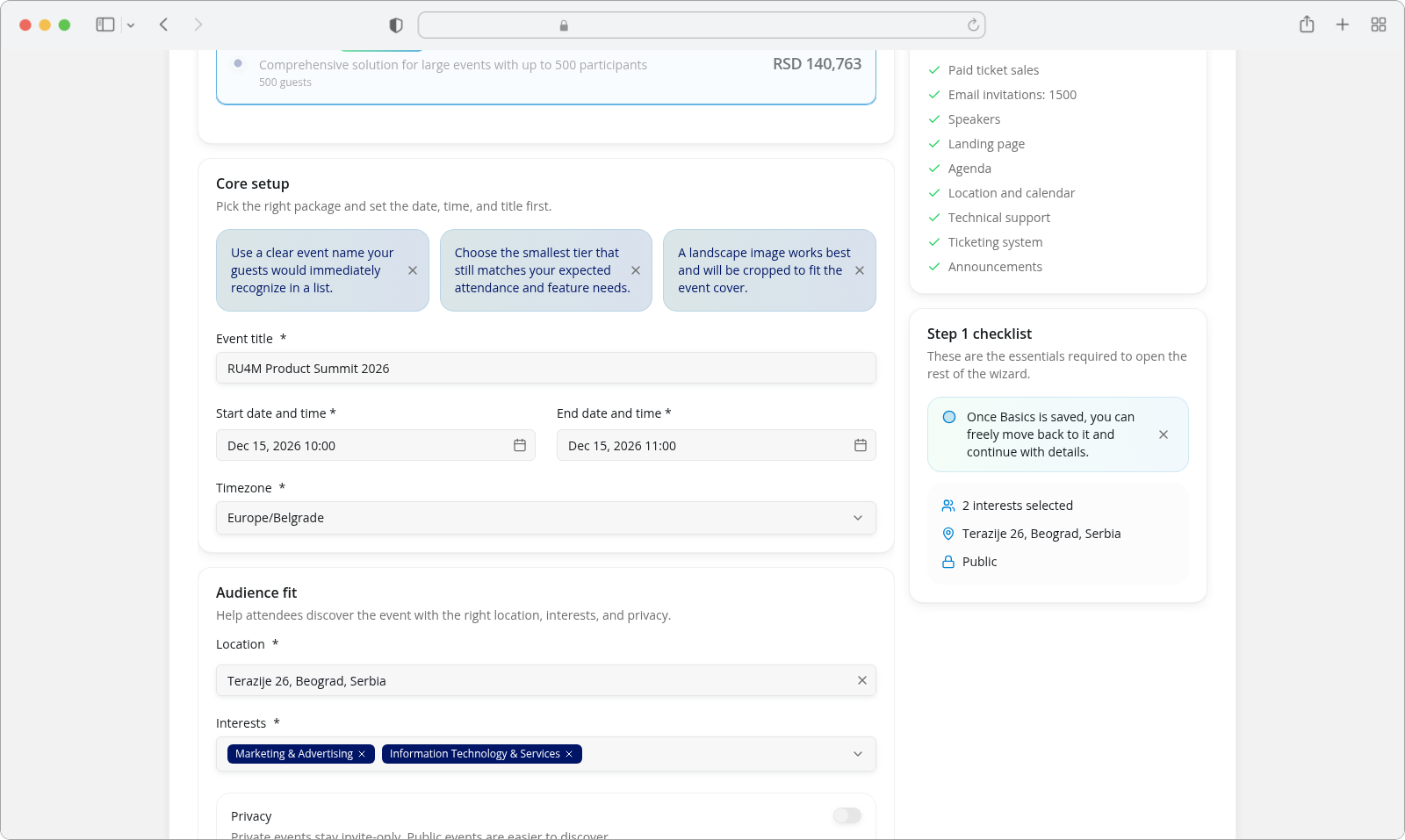
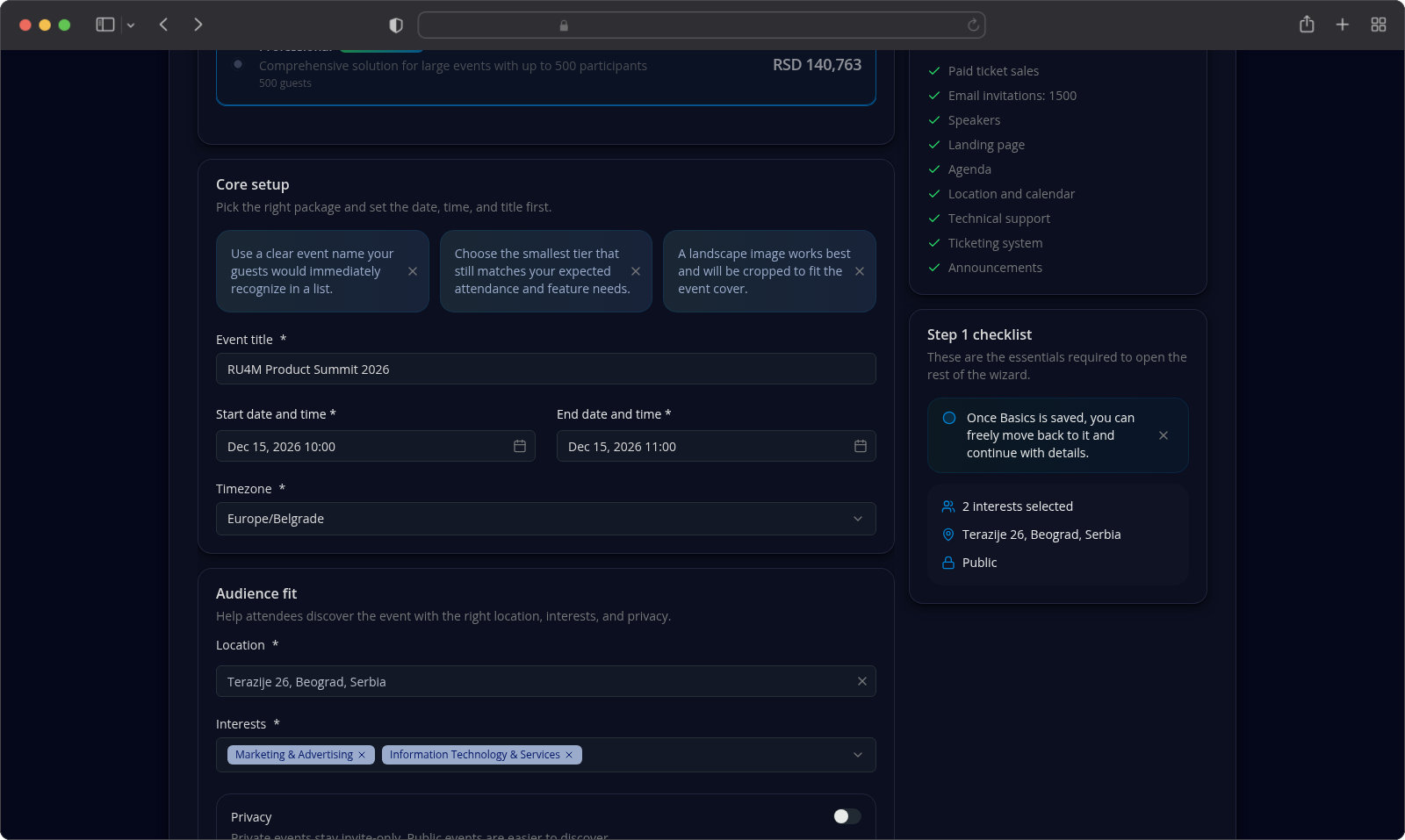
Four required fields decide when your event happens and where: Start date and time, End date and time and Timezone sit together in the Core setup card of the Basics step, and Location sits just below them, in Audience fit. This page covers what each field accepts, what it refuses, and the two rules that catch people out — the end has to come after the start, and a location only counts once you pick it from the list.
Who can fill these in
Any signed-in Backoffice account can, on a Free event exactly as on a paid one. No role, company or package feature stands between you and a saved date. All four can be changed afterwards on the event's own page — see Edit event content.
Where they are
All four live in Basics, the wizard's first step. The whole card is collapsed until you pick a package, so on a wizard you have just opened there is nothing to fill here yet. How to reach the wizard at all is covered in New event: the four creation steps.
Start date and time
The field opens a calendar with Hours and Minutes columns beside it. On desktop there is no Done button — the picker applies each choice as you click it and closes when you click away. On a phone the same picker is a sheet that needs the Done button under both columns before it closes. Picked values read like Dec 15, 2026 10:00; while the field is empty its placeholder reads Select date and time.
Two limits sit under it:
- You cannot start in the past. The earliest date the calendar offers is the current moment, read in the selected Timezone. Earlier days are disabled, and anything set below that minimum is pulled up to it rather than refused.
- You are not obliged to touch it. A wizard you have just opened arrives with the start already filled in at the current time, the end an hour later and Timezone on
UTC. Those three values are a starting point, not an answer — change whatever does not suit the event.
End date and time
Same control and the same Select date and time placeholder, and it cannot reach into the past either. Its one extra rule is that it must come after the start.
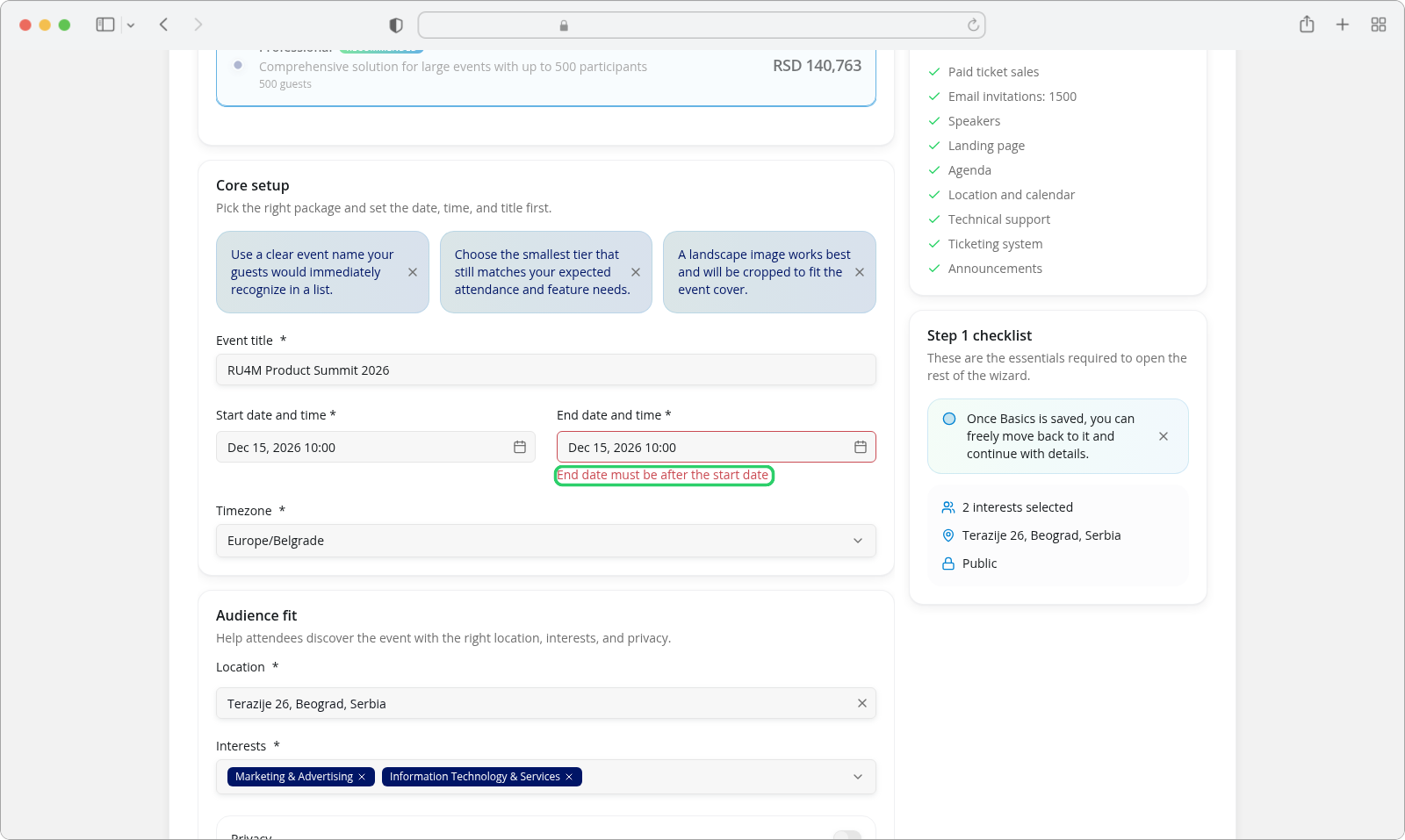
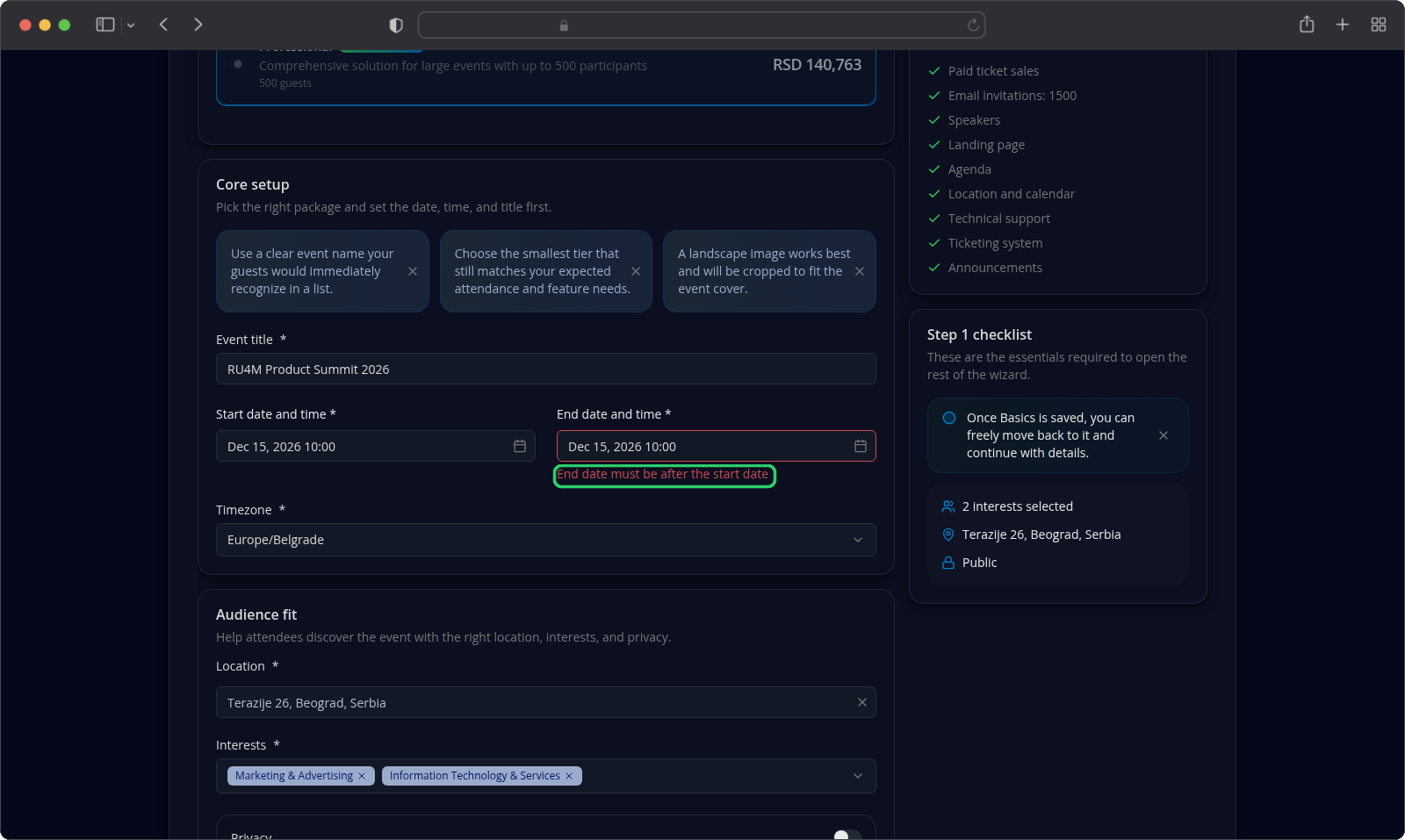
The picker treats the start as its earliest allowed moment, so the end can be set to exactly the start — and pressing Continue then answers End date must be after the start date directly under the field. That is the closest the calendar gets to a wrong end, and the wizard still rejects it.
Moving the start also moves the end — but only when the end would otherwise be empty, or no later than the start, in which case it becomes one hour after the start. An end that is already later stays exactly where you put it. Move the start forwards and your end keeps its own time; move it past the end and the end is dragged along.
Timezone
The zone your two times are read in — the thing that decides whether 10:00 means ten in the morning for an attendee in another country. It starts on UTC.
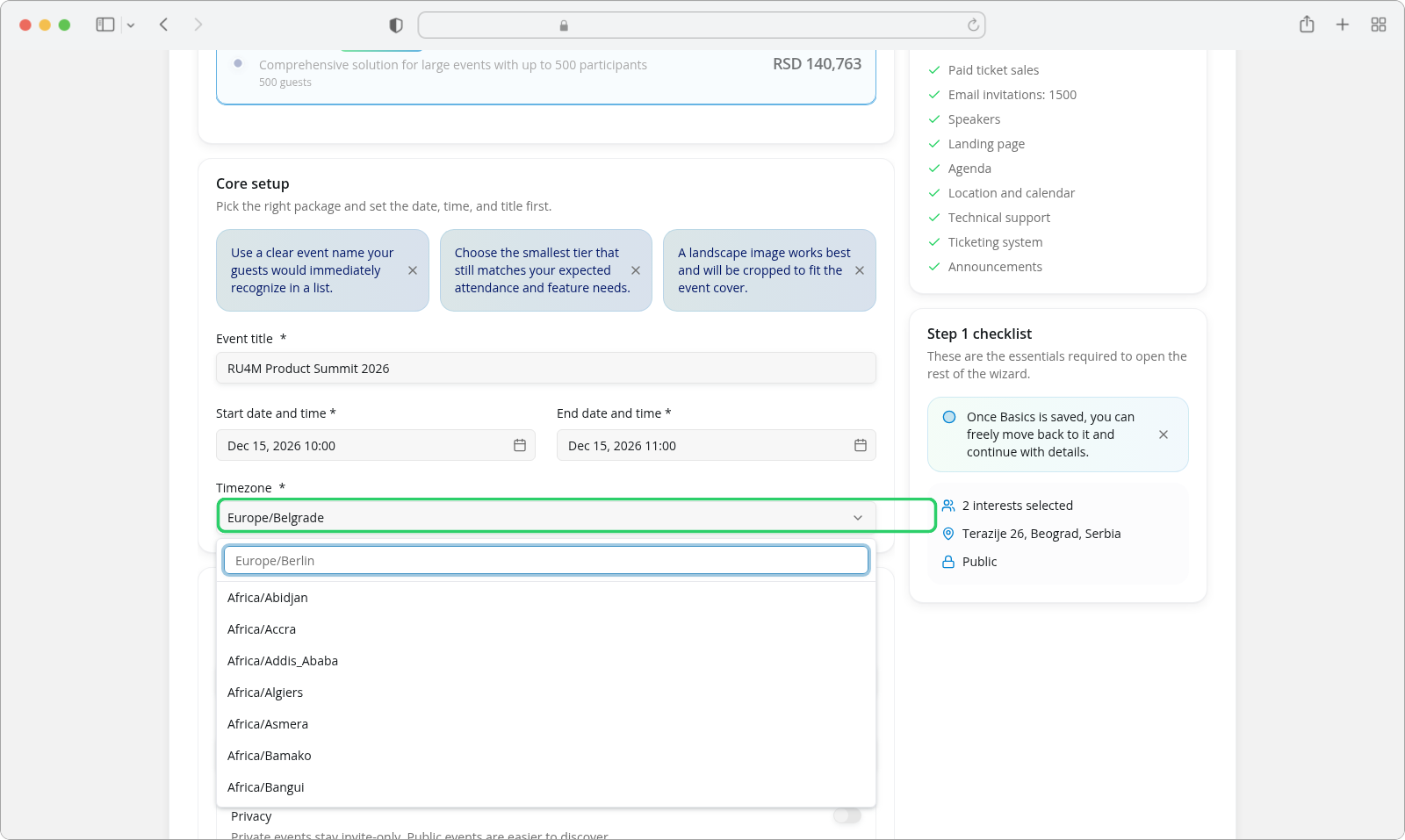
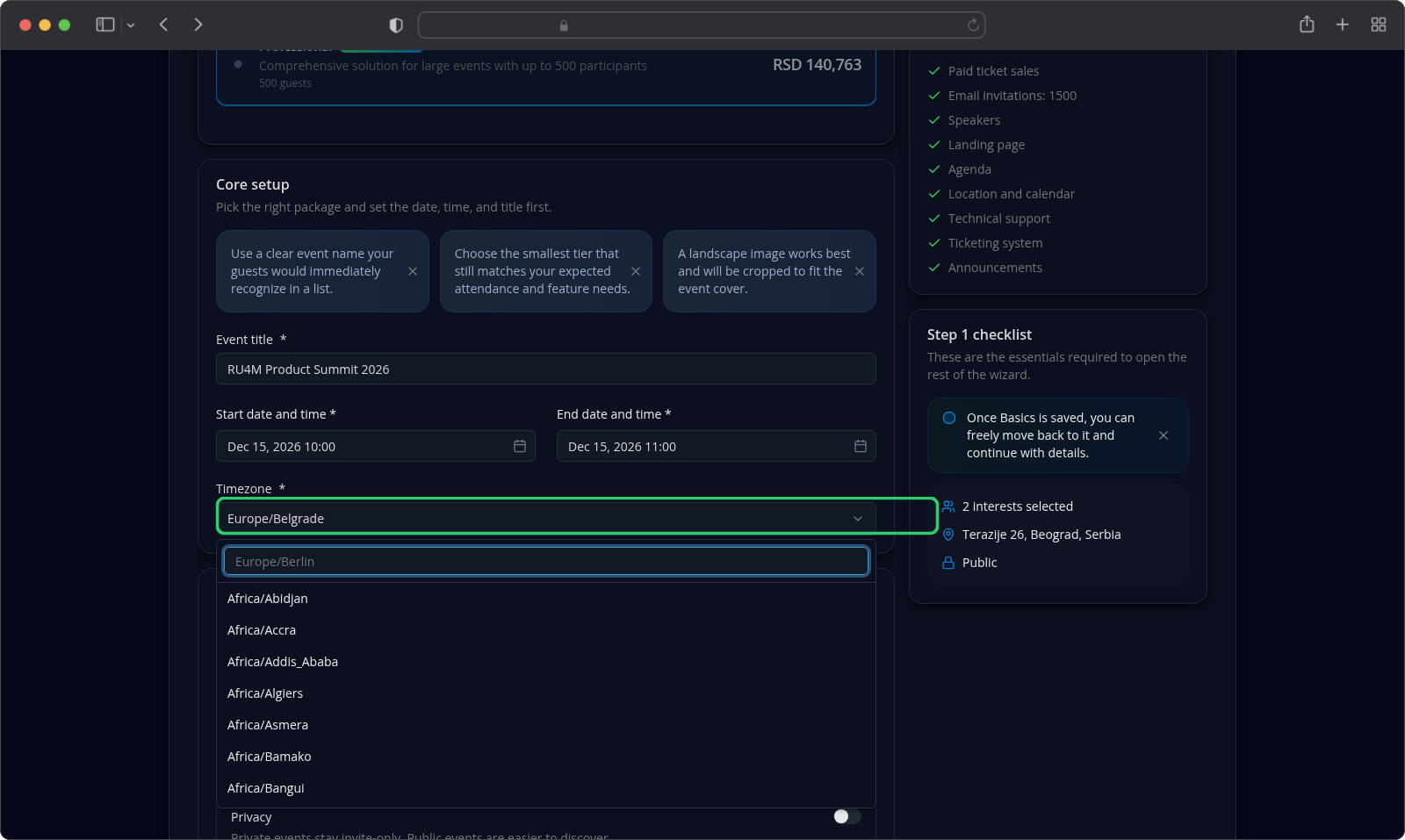
Press the field and a list of every IANA zone opens beneath it, with a search box on top whose placeholder reads Europe/Berlin. Type into that box to shorten the list, then click the zone you want. Two things follow from how the control works:
- Typing does not set the zone. The search box only filters the list; the field changes when you click an entry in it. A zone you never click is not saved.
- Only named zones exist. Free text and UTC offsets such as
+01:00are not values this field accepts — the list is the whole vocabulary. Serbian events useEurope/Belgrade.
Location
Where the event happens, and the field the wizard uses to place it on a map. Type part of a venue or address into Search for the venue or address and a list of matching places appears underneath.
Pick one of them. A suggestion you click becomes the field's value, gains a × button that clears it, and appears in the sidebar checklist under your event summary. Text you typed but never clicked does not: it looks filled and counts for nothing, and Continue answers Please select a location under the field. This is the single most common reason a filled-in Basics step still refuses to move on.
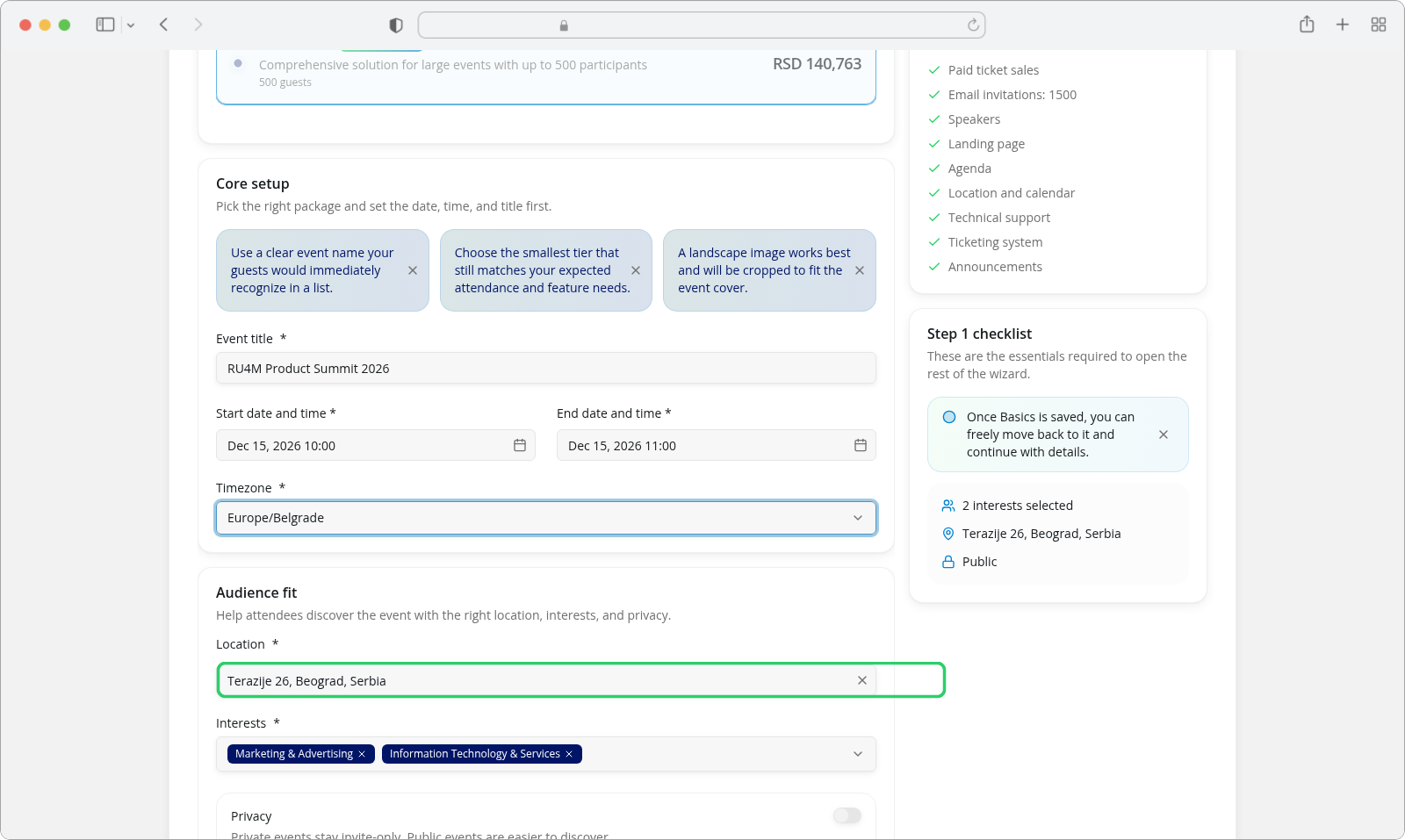
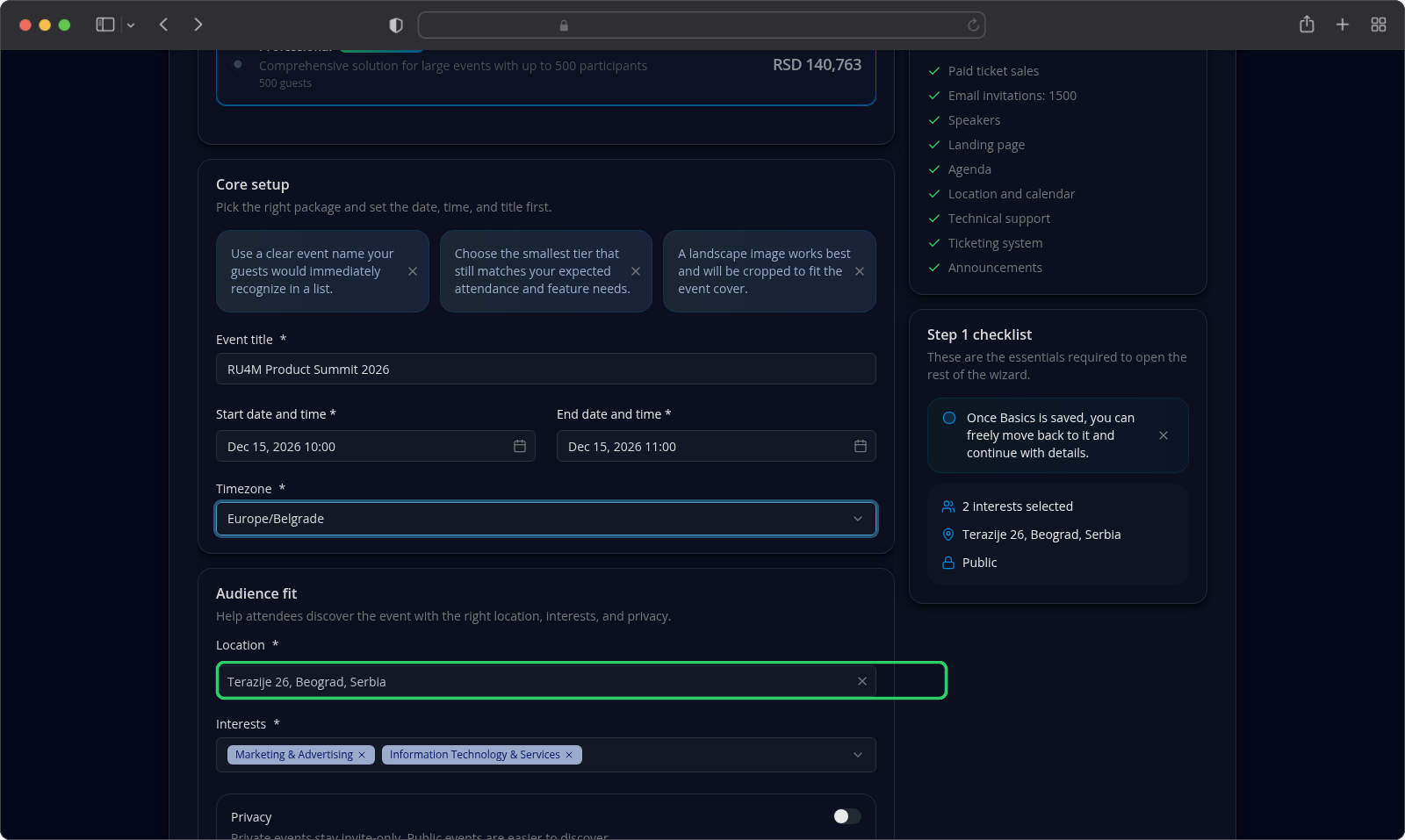
Suggestions are worth a glance before you accept one. The same address can come back spelled more than one way, and the version you pick is the one stored — Terazije 26, Beograd, Serbia and Terazije 26, Belgrade, Serbia are both offered for the same building, and the city is the only part that differs.
When a chosen time does not exist
Once or twice a year, in the zones that use daylight saving, a clock change removes an hour from the day. A time inside that missing hour simply does not exist on that date in that zone, and the wizard says so rather saving something that never happens:
The selected time does not exist in the selected time zone (clock change).
It appears under whichever of the two fields holds the impossible time, and Continue saves nothing until you pick a real one — usually an hour later or earlier, which is what the calendar offers in place of the removed hour.
What happens when you press Continue
Nothing special. All four fields are part of the one Basics check, so a mistake in any of them is reported under the field that carries it and the step does not move on. Once all four pass, the event is created as a draft and the rest of the wizard opens — see New event: the four creation steps for what happens next.
The sidebar Step 1 checklist tracks your location, your interests and whether the event is public or private. Read it as a summary of what you have filled in, not as a check that can pass or fail: it echoes Location still missing while the field is empty, and goes quiet about a field only once it holds a value.
If something goes wrong
| What you see | What it means | What to do |
|---|---|---|
| End date must be after the start date | The end is the same moment as the start, and the picker will not offer anything earlier. | Open the end field and choose any later time. |
| Please select a location | The field holds typed text, but no suggestion was ever clicked. | Click one of the places in the list; the error clears as soon as the field holds a real one. |
| Please choose a start date and time / Please choose an end date and time | The field is empty. | Open it and pick a date and a time from the calendar, Hours and Minutes columns. |
| Please choose a timezone | No zone has been chosen. | Open the field and click one in the list. |
| Please enter a valid IANA timezone | Rare, and never caused by typing: the search box filters the list rather than filling the field. | It means the value came from an older draft. Open the field and click the right zone again. |
| The selected time does not exist in the selected time zone (clock change). | A clock change removed that hour. | Choose a time outside the missing hour — the calendar offers the real neighbouring times. |
| The calendar will not open a date you want | Earlier days than the current moment are disabled, and for the end field, earlier than the start. | Pick the earliest moment you can and change the timezone if the event is genuinely in a different day where you are. |
| Your start was quietly moved to now | On a brand-new event whose start date you never edited, a start still in the past is saved as the current moment, with the end moved by the same amount. The fields keep showing what you saw. | Set the start yourself if the event is not starting today. |
| The end jumped by an hour | The end was empty or not after the start, so it followed the start. | Set the end to the time you want — it then stays where you put it. |
Related tasks
- New event: the four creation steps — the wizard these four fields belong to
- Event visibility — the Privacy switch in the same step
- Draft, review and publication — what a saved event looks like next
- Packages and tickets — the package chosen before these fields appear
- Edit event content — changing dates and location after the event exists